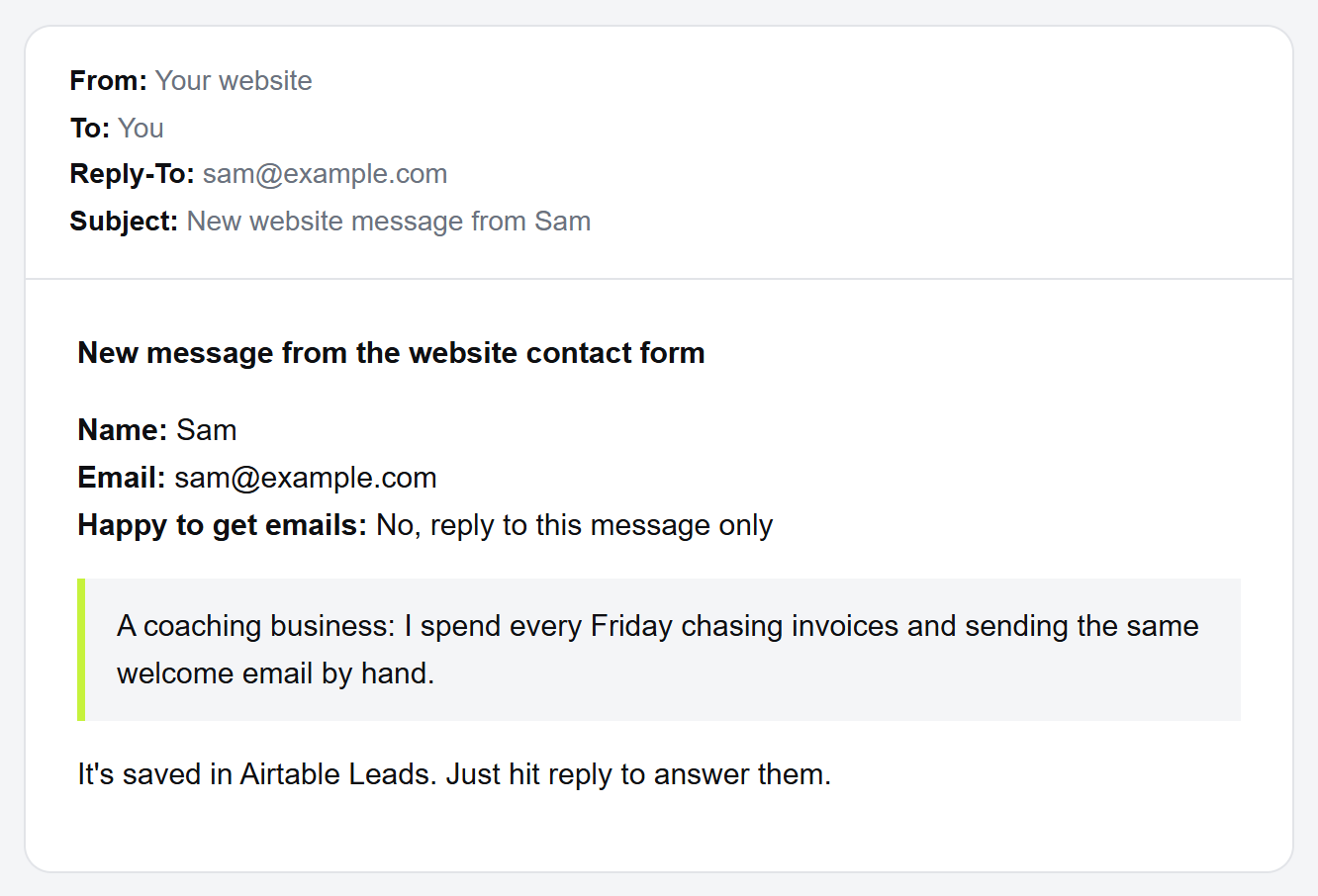
Someone fills in the form on your website. It lands in an inbox. You mean to reply, then the week happens. Three days later you find it, and they've already gone with someone else.
The form did its job. The bit after it didn't.
In plain words: an automation here just means that when one thing happens (a form is filled in), the next things happen on their own (the person is saved, and the right email goes out).
Why website forms get lost in your inbox
Most websites send a form straight to an email inbox. That feels fine until you have a few a week. Then they sit between newsletters and receipts, nobody owns them, and there's no list of who asked for what.
What you want instead is simple. Every form lands in one list. Each person is one row. And the first reply goes out on its own, so nobody waits. No website yet? A free form and an Airtable base does the same job.
How to send website forms to Airtable with Make
This is the exact setup we built for the forms on this site.
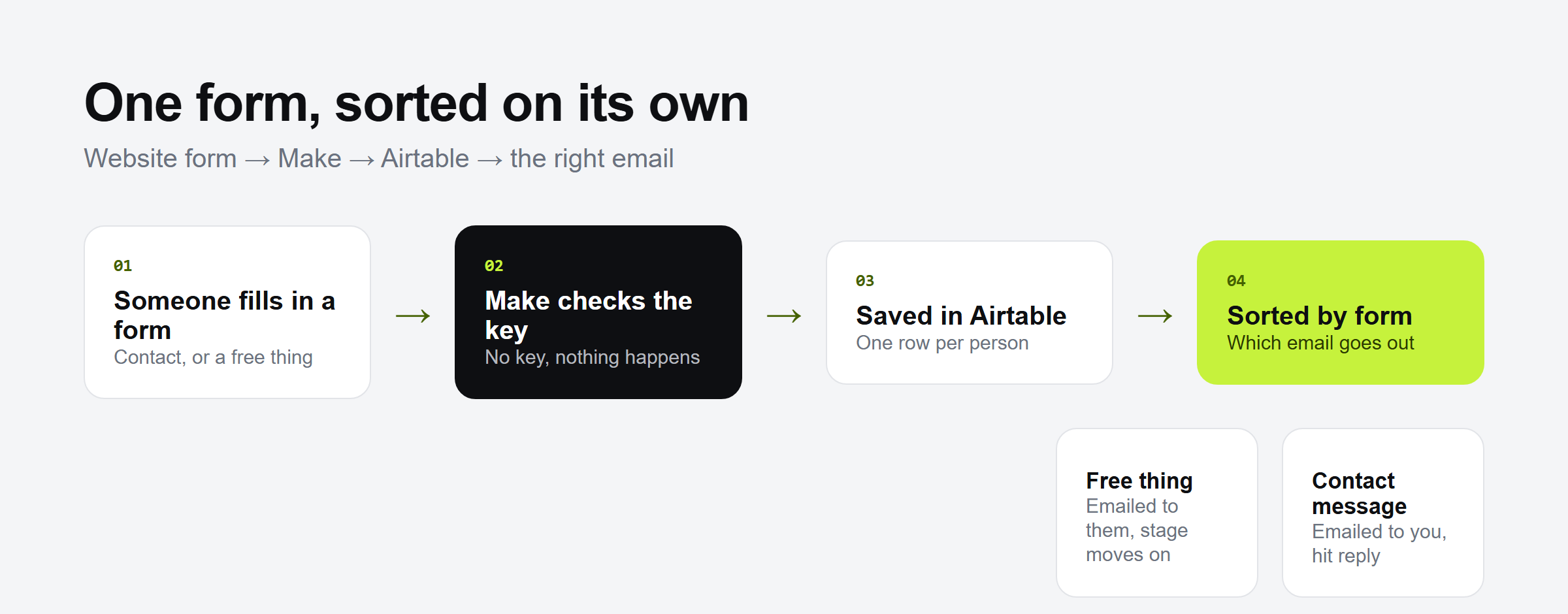
Step 1: Someone fills in a form
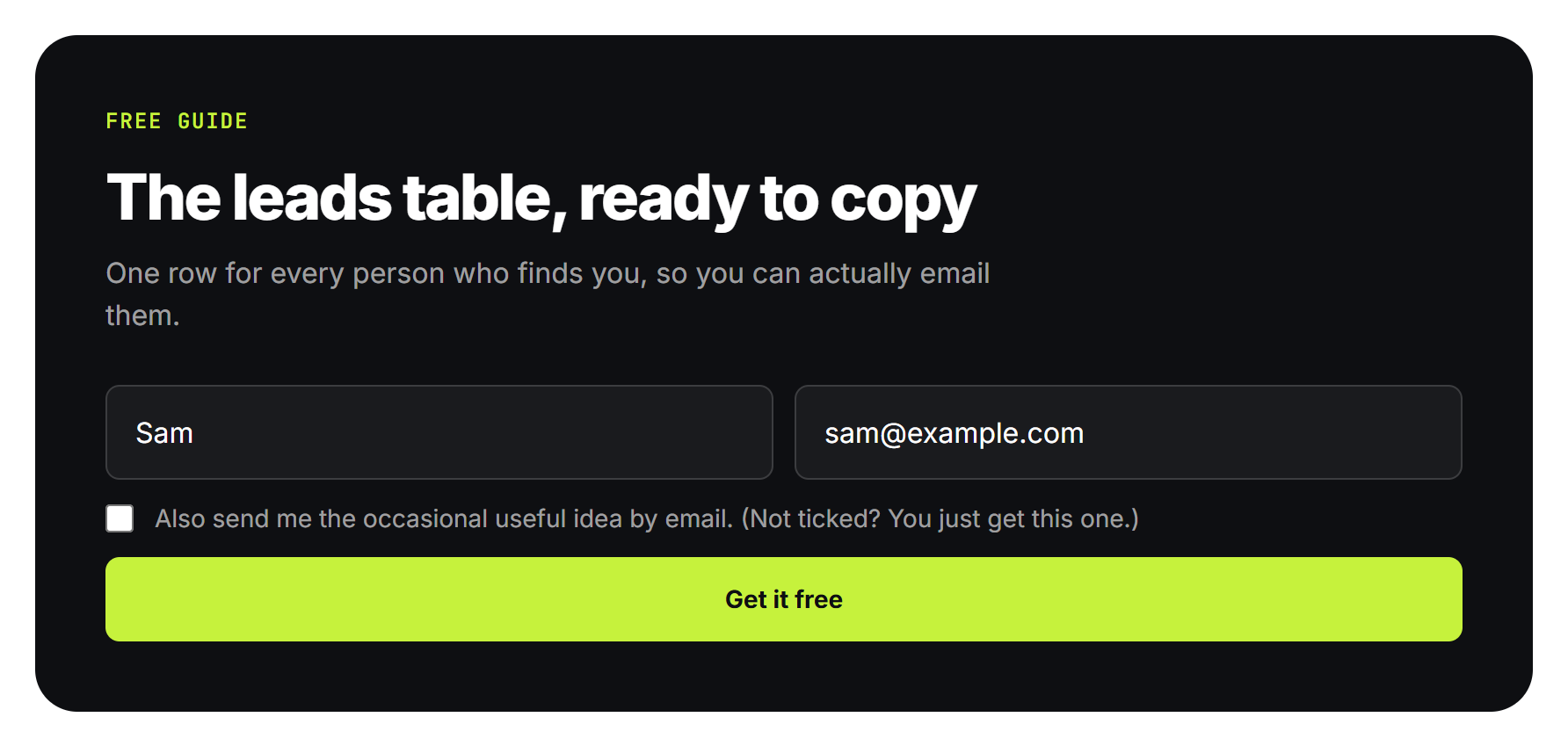
There are two kinds on this site. One asks for a free thing, like a checklist or a guide.
The other is a plain contact form.
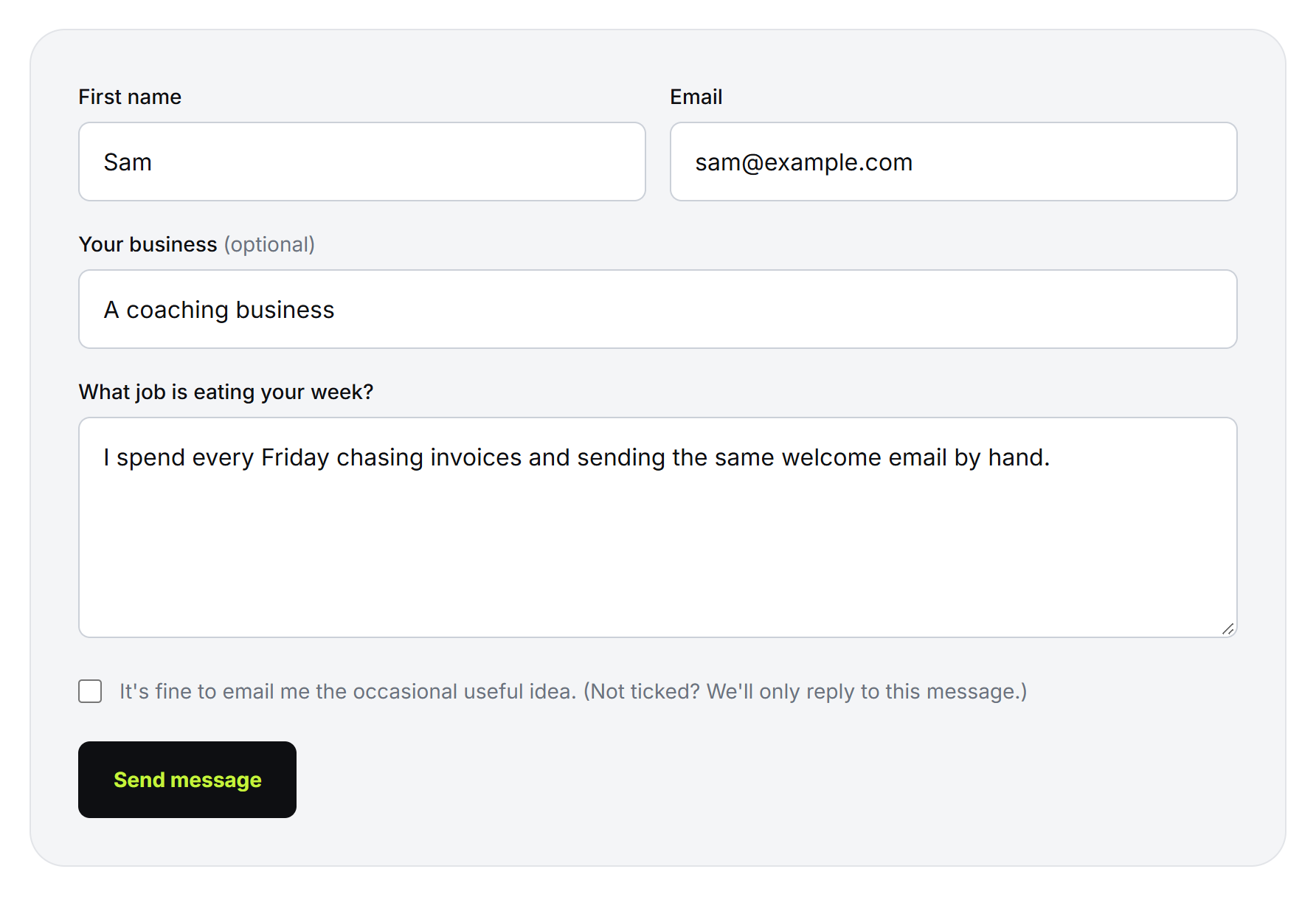
Each one sends a small bundle: name, email, what they asked for or said, and a label for which form it was.
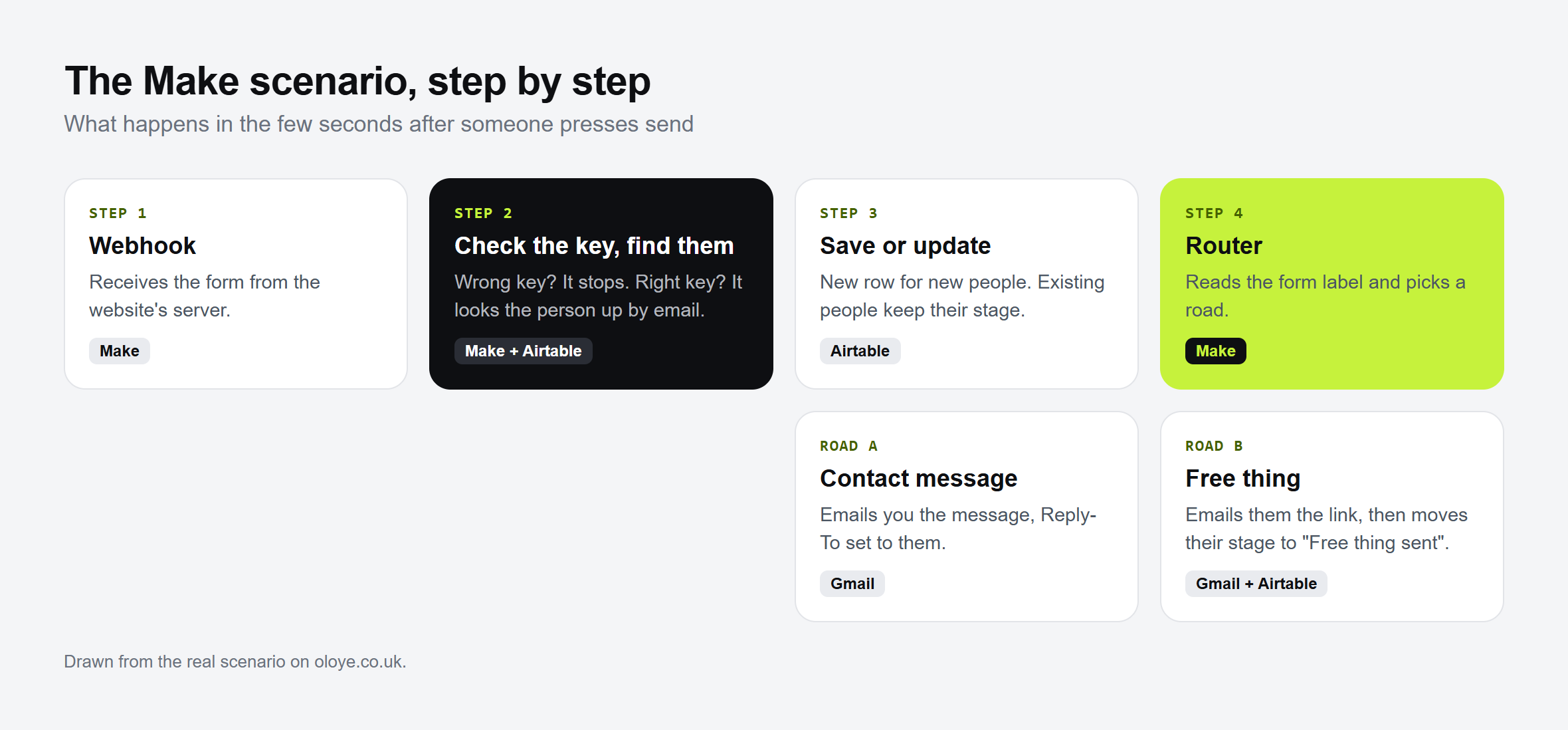
Step 2: Make checks the key
The form doesn't go to an inbox. It goes to a private web address in Make, called a webhook. The website sends it from its own server, so the address never shows on the page.
Every bundle carries a secret key. The first thing Make does is check it. If the key is wrong or missing, it stops right there. Nothing is saved and nothing is sent.
Good to know: this is what stops strangers stuffing junk into your list. Even if someone found the address, without the key Make ignores them.
Step 3: Saved in Airtable
Next, Make looks for the person in an Airtable table by their email.
- New person: a new row, marked "New", with today's date and what they said.
- Already there: the same row is updated. Their stage stays as it was, and the new message is added under the old ones.
One person, one row. No duplicates.
Step 4: Sorted by form
Then Make looks at the label and picks a road.
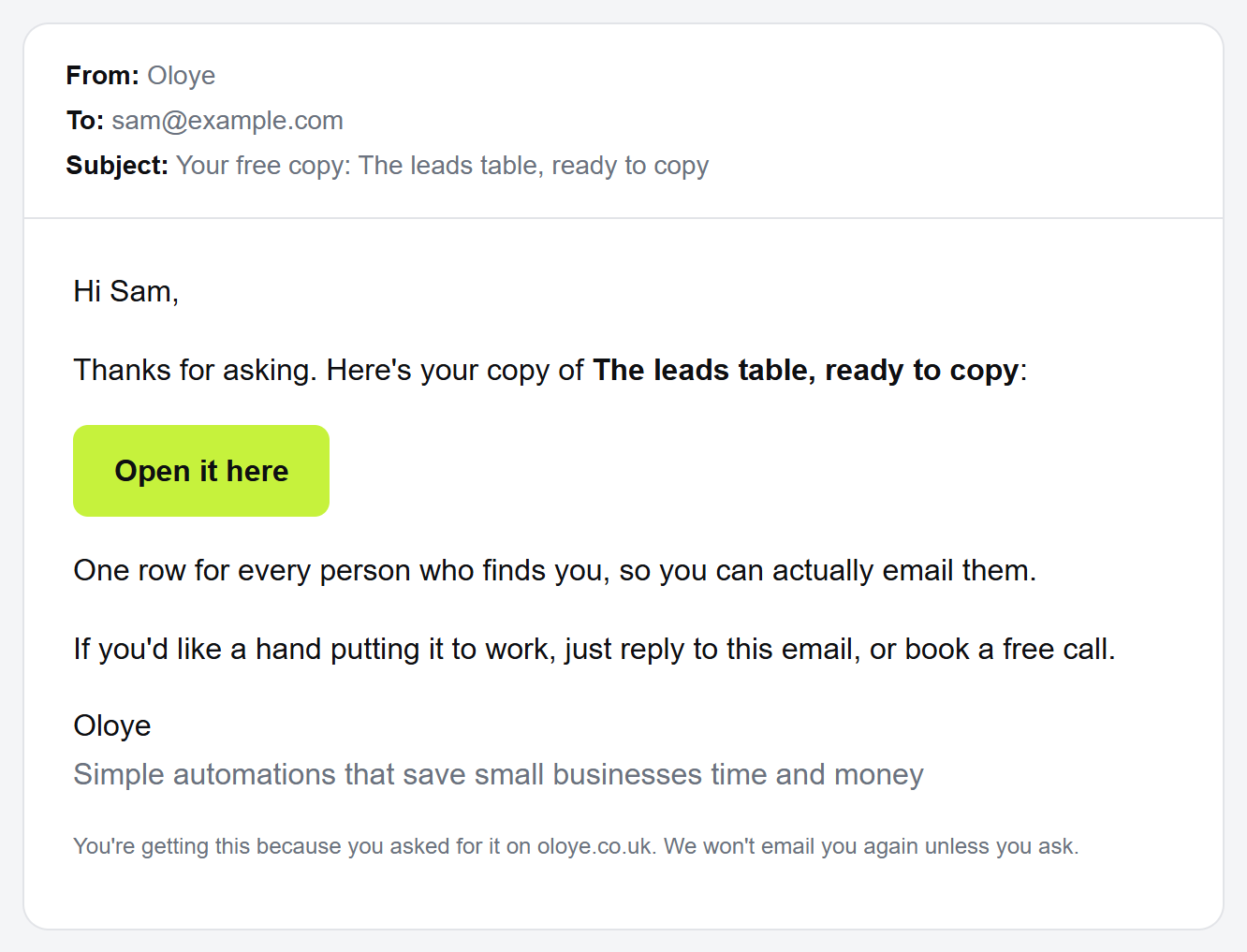
A free thing: Gmail sends them an email with the link, straight away. Their row moves to "Free thing sent".
A contact message: Gmail sends the message to you, with their email set as the reply address. Hit reply and you're talking to them.